TU Events and Fundraising Centers Overview
The Eventgroove online platform is an engagement great tool that assists our chapters and councils in promoting and managing their events and fundraisers that increase the number of non-member supporters who “walk through the doors”. Our goal is to increase the number of chapters and TU staff across the country that are utilizing this tool, and as a result, increase the number of non-member supporters across the organization. Our events being posted to the Eventgroove site is not a one-dimensional ask; Tree and Trash data, Advocacy Events, Chapter Administration or Turnover Support, Events in Underserved Communities, Veterans Service Events, and Conservation Projects will all see an uptick as a byproduct of more events being posted, held, and seen by volunteers, partner organizations, and non-member supporters.
This guide contains resources for:
----
Getting Started with the TU Events Center
Here's a getting started guide for TU’s Event Center registration tool with our partner Eventgroove! We will need to add you as an admin (multi-user) with your membership email address for your chapter account. This will initiate a verification email from Eventgroove that you need to open and complete the verification process.
To get added, reach out to doug.agee@tu.org with your membership email address.
When you are ready to add events, go to the online TU Events Center and enter your credentials.
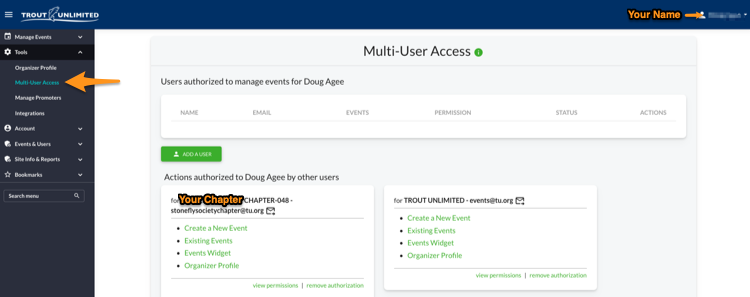
Tip: You should always build events under your chapter’s profile. When you log in, be sure that you see your name in the upper right and that you Create a New Event under your chapter’s name in the block. This makes it easier to access chapter reports and to help monitor notifications to the chapter. The example below is how that looks. Please let me know if you need to make any other changes to the Chapter’s Profile and if you have other Chapter leaders to add as admins. It is good to have more than one leader with access to the Chapter account.
Helpful Resources
Here is a video resource on how to setup a basic event registration page
As you start using the new platform, you’ll want to review these helpful online resource training articles and videos to answer many of your questions.
We also have support with an Eventgroove staff member for yourself or your committee to be trained on access and setting up your first event. They are great at training TU chapters on using the tool and once you’ve done one event you should have no problem creating more. You can set up training with our dedicated customer support staff at Eventgroove by emailing support@myeventscenter.com or calling (888) 509-1060.
Event Templates
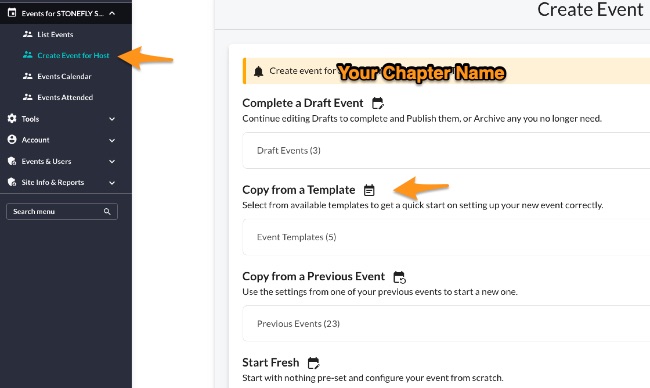
You will find templates to save you time by quickly setting up our most common event types. When you Create New Event under your Chapter’s profile, you have template options to help. Simply edit date, time, and the content of the body. Here is where you see the templates...
Need more help?
If you need additional assistance on events and fundraising for your chapter, reach out to Doug Agee <Doug.Agee@tu.org> or Sean Sieler <sean.sieler@tu.org>. We also encourage you to post you event tips and questions in the Leaders Forum (link here) which will help other chapters and volunteers.